
PowerPoint
PowerPoint transitions can transform a basic slideshow into a polished, professional presentation. These seven dynamic effects will help you create smooth, engaging visual storytelling that captivates your audience—whether for business pitches or creative projects.
Morph Transition for Seamless Content Changes
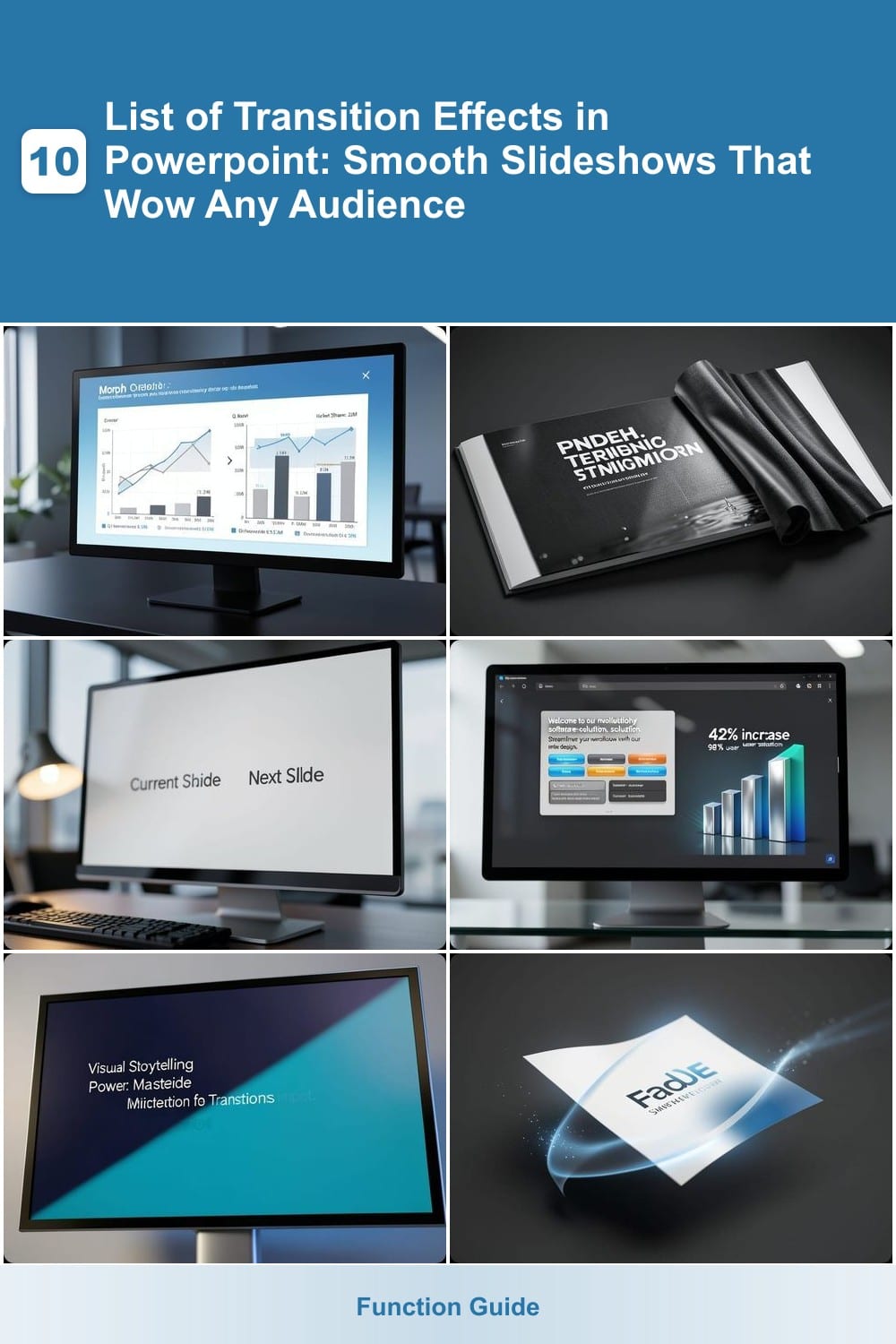
Tired of jarring slide breaks disrupting your financial analysis or data-heavy presentations? The Morph transition in PowerPoint is designed specifically for you—it intelligently transforms shapes, charts, and text between slides in a single fluid motion, preserving context and keeping your audience focused on the data.
Available in PowerPoint 2019 and Microsoft 365, this transition works best with vector-based objects (like SmartArt, charts, and text boxes) to create a smooth, continuous flow. Unlike standard fades or wipes, Morph maintains visual relationships—so that pie chart you modified into a line graph won’t feel like a sudden reset. The effect is subtle yet impactful, ideal for quarterly reports or investor decks where precision matters.
Perfect for analysts, financial teams, or anyone presenting complex data—this transition ensures your audience stays engaged without visual distractions. ✨
Push Transition for Dramatic Slide Entry
When you need to make every slide feel like a moment in a story, the Push Transition delivers a cinematic reveal that commands attention. Unlike subtle fades or morphs, this effect pushes your slide in from one side—left, right, top, or bottom—creating a dynamic, intentional arrival that feels purposeful.
You can customize the direction and speed to match your presentation’s rhythm, and it works seamlessly with PowerPoint’s built-in timing tools for precise control. The dramatic entry makes it perfect for keynote speeches, product launches, or any scenario where you want to emphasize the arrival of a slide as a key part of your narrative.
This transition shines for speakers who want to guide their audience’s focus—think TED Talks, investor pitches, or creative storytelling. Just avoid overusing it, or you’ll risk overshadowing your content. ✨
Fade Transition for Elegant Simplicity
When you need a subtle yet sophisticated way to connect slides without stealing focus from your content, the Fade transition delivers effortlessly. Unlike flashy effects, it dissolves one slide into the next with a smooth, zero-distraction crossfade—ideal for maintaining professionalism while adding polish.
This built-in PowerPoint effect works seamlessly across all versions (including PowerPoint 365 and 2019/2016) and pairs perfectly with dark or light themes. The customizable speed (from 1 to 10 seconds) lets you control pacing, while the no-sound default keeps presentations audience-friendly. For extra flair, pair it with soft background music to enhance the elegant feel.
Designers, consultants, and educators rely on Fade for its universal appeal—whether presenting a corporate quarterly report or a portfolio showcase. It’s the go-to for when you want smoothness over spectacle. ✨
Zoom Transition for Highlighting Key Slides
Need to make a product demo slide pop? The Zoom Transition in PowerPoint delivers exactly that with a dynamic zoom effect, drawing attention to critical content like product screenshots, graphs, or key metrics. Unlike static slides, this transition creates visual momentum by smoothly zooming in or out, ensuring your audience focuses on what matters most.
Customize the effect with speed controls and direction options (inward/outward), and pair it with a subtle sound effect for added impact. Perfect for product launches, training sessions, or sales pitches, this transition elevates your presentation without overwhelming it—just don’t overuse it, or you’ll risk distracting from your message. 💻
Wipe Transition for Creative Storytelling
Need to direct your audience’s attention like a pro? The Wipe Transition lets you control the direction of the slide reveal—left, right, up, down, or even diagonally—giving you precise visual storytelling power.
Unlike static fades or zooms, this effect lets you align transitions with your content’s flow, like wiping left to right for chronological progress or diagonally to emphasize a bold shift in ideas. It’s also customizable in PowerPoint’s transition gallery, where you can tweak speed and timing for a polished look.
Educators use it to guide students through step-by-step processes, while marketers leverage it to highlight product features with intentional motion. Perfect for presentations where visual cues matter as much as the content itself. ✨
Fade Swoosh Transition for Playful Energy
Tired of the same old slide transitions? The Fade Swoosh injects energy into your presentations with a sleek, curved motion that fades in while sweeping across the screen. This isn’t just another fade—it’s a dynamic blend of smoothness and movement, designed to keep your audience engaged without overpowering your content.
The transition features a customizable swoosh path (left, right, or center) and adjustable speed, letting you control how bold or subtle the effect feels. It’s perfect for casual brainstorming sessions, creative pitches, or team meetings where you want to maintain a lively atmosphere. The built-in sound effects (optional) add an extra layer of fun, making it ideal for presentations that need a modern, playful vibe.
Creative professionals, startup founders, and educators will love how this transition keeps energy high without sacrificing clarity. It’s the go-to choice when you want to stand out while still delivering your message with confidence. ✨
3D Rotate Transition for Interactive Presentations

When you need to explain complex 3D models or technical diagrams, the 3D Rotate Transition turns flat slides into an interactive experience. This effect spins your slide along the X, Y, or Z-axis, giving your audience a tangible sense of depth—perfect for engineering demos or medical training where spatial relationships matter.
Unlike flat transitions, the 3D Rotate lets you adjust the rotation angle (up to 360 degrees) and axis direction, ensuring your visuals align with how your audience processes spatial data. It’s also fully customizable: tweak the speed, add a subtle shadow effect, or even pair it with a 3D cube animation to reinforce your points visually.
This transition shines in technical training sessions or product launches where demonstrating how components fit together is critical. Just avoid overusing it—save it for moments when that extra dimension clarifies your message. ✨