
Tip & Trick
Remote work offers flexibility but exposes you to cyber threats. These 10 security best practices help you protect sensitive data while maintaining efficiency, covering everything from device security to human error prevention.
Use Multi-Factor Authentication Everywhere
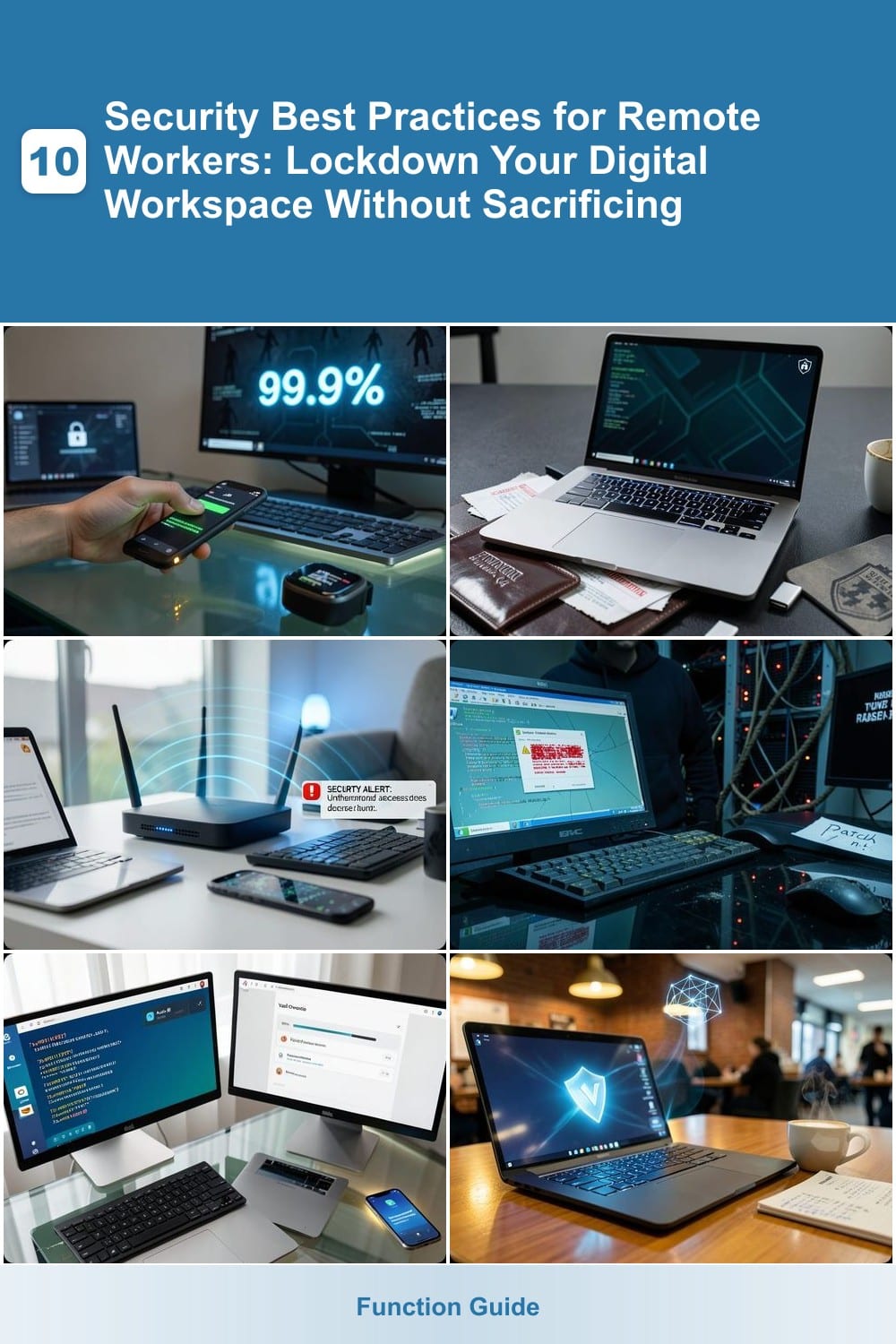
Credential-stuffing attacks account for 99.9% of hacking attempts—and multi-factor authentication (MFA) is the simplest way to block them instantly. Unlike passwords alone, MFA adds a second layer (like a code from your phone or a fingerprint scan) that even leaked credentials can’t bypass.
Most services—including Microsoft 365, Google Workspace, and Dropbox—offer free MFA setup with TOTP (time-based codes) or biometric verification. For corporate accounts, FIDO2 security keys provide the strongest protection without app dependencies. Even a basic SMS-based code is better than nothing if you’re traveling and can’t access authenticator apps.
This is non-negotiable for email, cloud storage, and financial tools—where a single breach can expose years of sensitive data. Enable it now, even if it feels like a small hassle; one breach costs far more than 30 seconds of setup. ✨
Enable Full-Disk Encryption on Devices
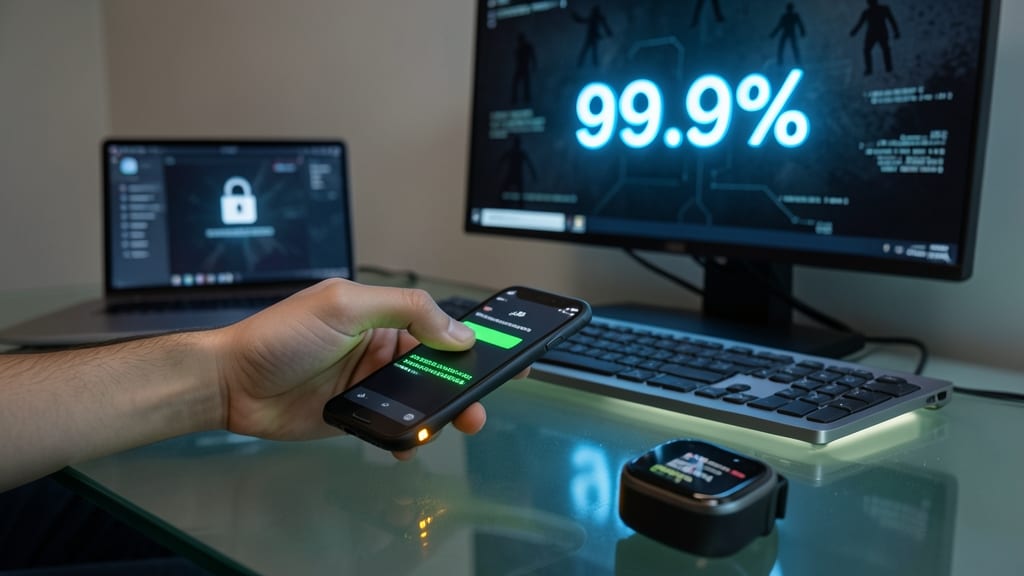
Your laptop contains years of sensitive work files, personal documents, and financial records—all vulnerable if lost or stolen. Full-disk encryption transforms your device into a digital vault, ensuring that even if someone gains physical access, they can’t unlock your data without your password or recovery key.
Windows BitLocker and macOS FileVault both offer military-grade AES-256 encryption with minimal setup. BitLocker integrates seamlessly with Windows Hello for zero-config biometric unlocking, while FileVault runs silently in the background on macOS. Both tools encrypt your entire drive, including the operating system, and can be enabled with just a few clicks during initial setup—or retroactively with a reboot.
This is a must-have for remote workers, freelancers, or anyone handling confidential data. It’s especially critical if you travel frequently or use public transit. 🔧
Secure Your Home Wi-Fi Network
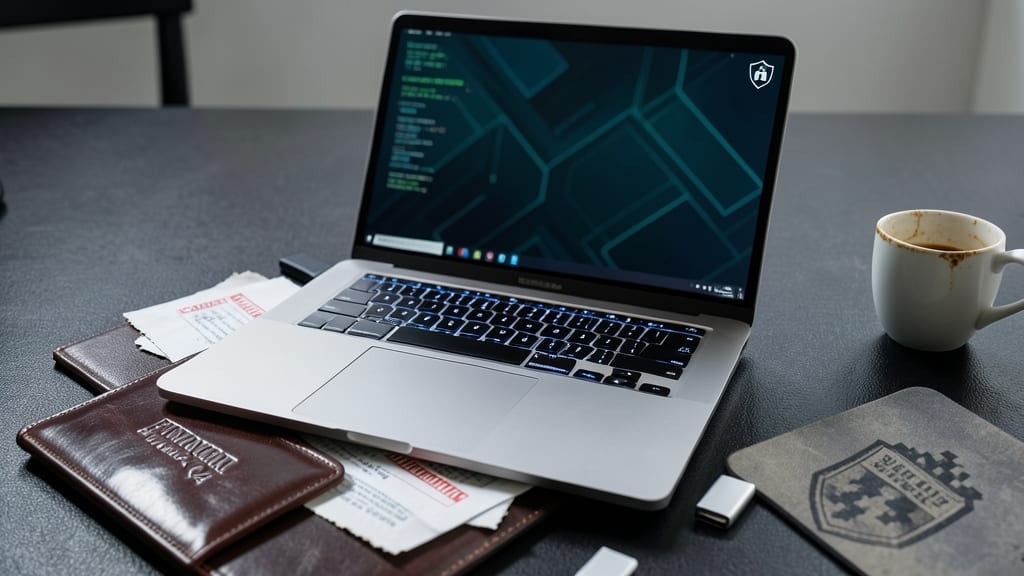
Your home Wi-Fi isn’t just a convenience—it’s often the first line of defense for your remote work security. Hackers can exploit weak networks to intercept sensitive emails, logins, or even corporate data through man-in-the-middle attacks, making this one of the easiest yet most overlooked security gaps.
Start by upgrading to WPA3 encryption (available on most modern routers) to block brute-force attacks and eavesdropping. Pair this with a 20+ character password using a mix of letters, numbers, and symbols—no more "password123!"—and enable network segmentation to isolate work devices on a separate VLAN or SSID. Guest networks with strict bandwidth limits add another layer of protection for personal devices.
This setup is ideal for remote workers who handle sensitive data, freelancers collaborating with clients, or anyone sharing their network with family members. A few minutes of configuration now can save hours of cleanup later. ✨
Regularly Update All Software
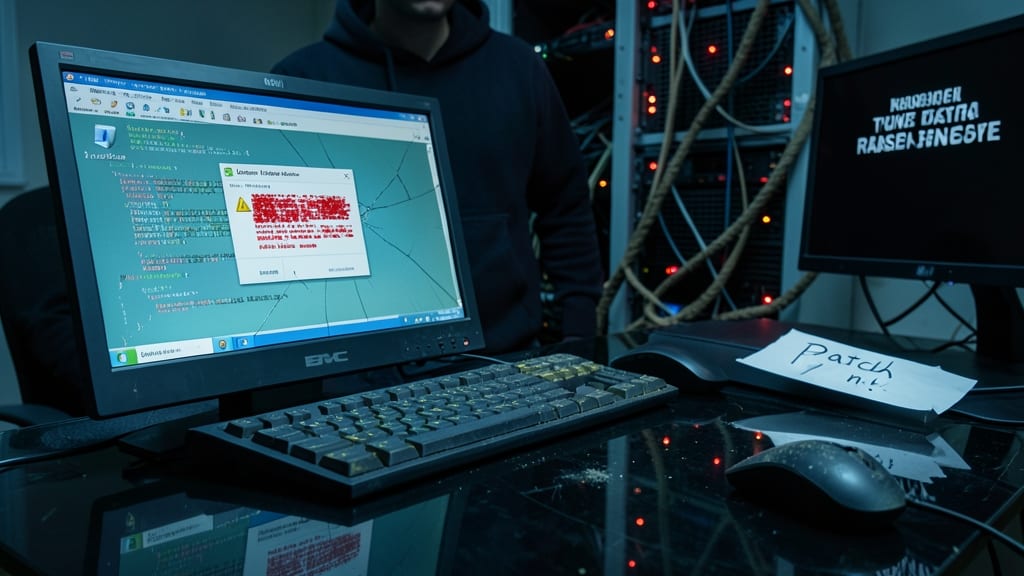
Cybercriminals exploit outdated software like a wolf in sheep’s clothing—targeting unpatched systems to deploy ransomware and malware. The fix? Automated updates for Windows, macOS, browsers, and productivity apps like Outlook, which block exploits before they become threats.
Most operating systems now offer zero-configuration update automation—Windows Update, macOS Software Update, and Chrome’s auto-update feature all run silently in the background. For productivity apps, enable auto-updates in Outlook, Slack, or Zoom settings to patch vulnerabilities the moment they’re discovered. Even a single unpatched app can expose your entire system to attack.
This practice is non-negotiable for remote workers handling sensitive data, but it’s also effortless once set up. Set aside 10 minutes to verify your automation settings, and you’ll sleep better knowing your digital workspace stays one step ahead of hackers. ⚡
Use a Password Manager
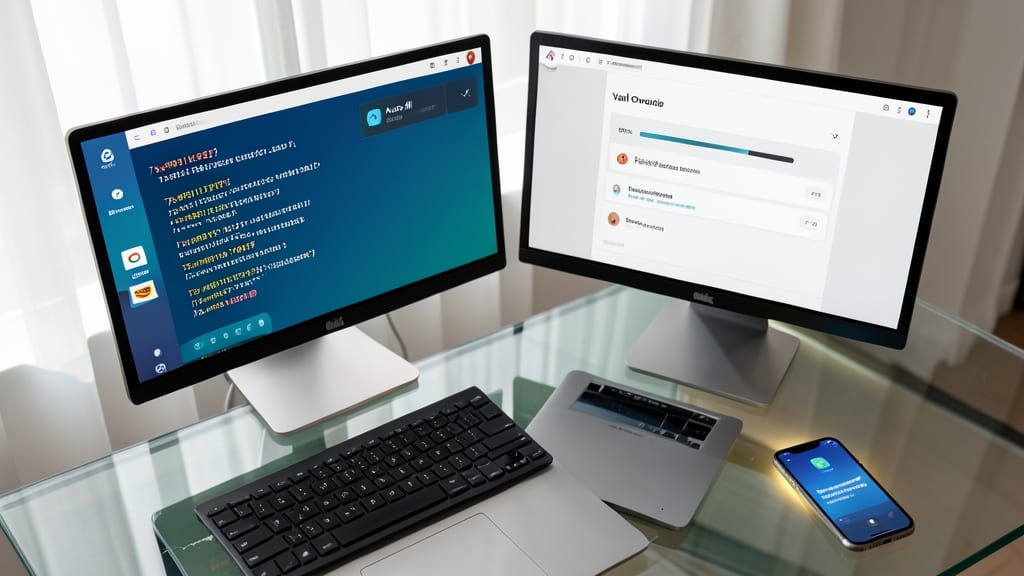
Tired of reusing the same weak passwords across accounts? A password manager like Bitwarden or 1Password eliminates this risk by generating and storing unique, complex passwords for every site—so one breach won’t unlock everything.
These tools sync seamlessly across all your devices (phone, laptop, tablet) with end-to-end encryption, ensuring only you can access your vault. Features like autofill save time, while two-factor authentication adds an extra security layer. Even free options like Bitwarden offer open-source security and cross-platform support.
Perfect for remote workers juggling multiple accounts, from work emails to shopping sites. No more sticky notes or browser-saved passwords—just one master password to remember. ✨
Implement a Virtual Private Network
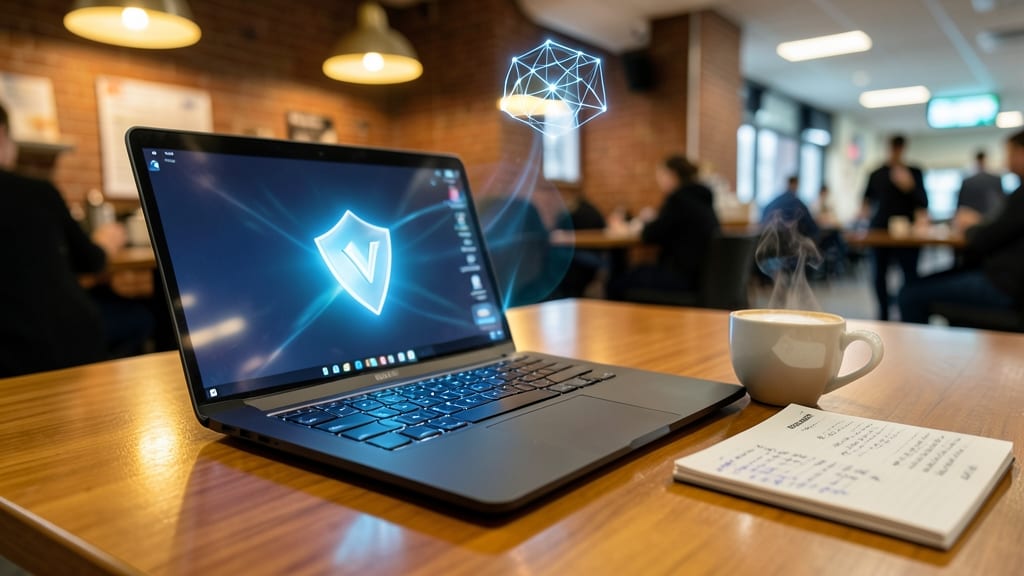
Public Wi-Fi at coffee shops or airports is convenient—but also a hacker’s playground. A virtual private network (VPN) creates an encrypted tunnel for all your internet traffic, making it nearly impossible for snoopers to intercept sensitive data like emails, passwords, or financial details.
Top-tier options like NordVPN (with 6,000+ servers and double encryption) or ProtonVPN (Swiss-based, zero-log policy) mask your IP address and scramble data in real time. Both offer one-click setup on Windows, macOS, and mobile, and many include ad-blocking to further protect you. Even free tiers (like ProtonVPN’s) provide solid security for basic needs.
This is non-negotiable for remote workers accessing company resources or handling client data—especially when traveling. A VPN turns sketchy networks into secure zones. ✨
Secure Your Webcam and Microphone
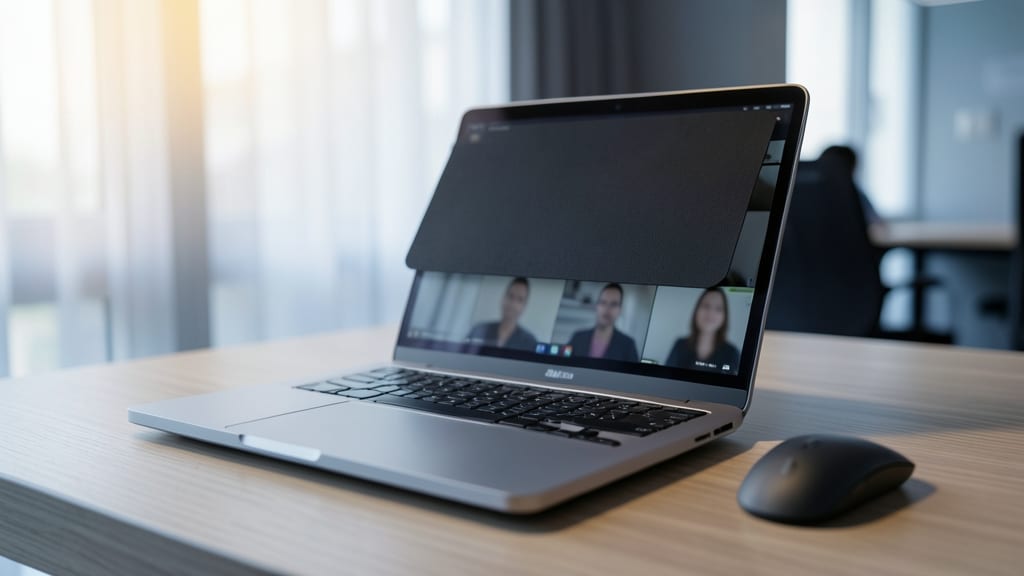
Your webcam and microphone are prime targets for hackers—even when you’re not using them. A simple physical cover or software toggle can block unauthorized access, giving you peace of mind during video calls, meetings, or downtime.
For hardware protection, use privacy shutters like the 3M Privacy Filter or Logitech’s built-in camera cover. On Windows, disable your webcam via Device Manager (right-click the camera > Disable), while macOS users can toggle it in System Preferences > Security & Privacy. Software like OBS Studio or Camouflage lets you mute/mask your mic instantly.
This is especially critical for remote workers handling sensitive data—even accidental exposure can lead to breaches. A quick habit check keeps your digital workspace truly private. ✨
Educate Yourself on Phishing Attacks
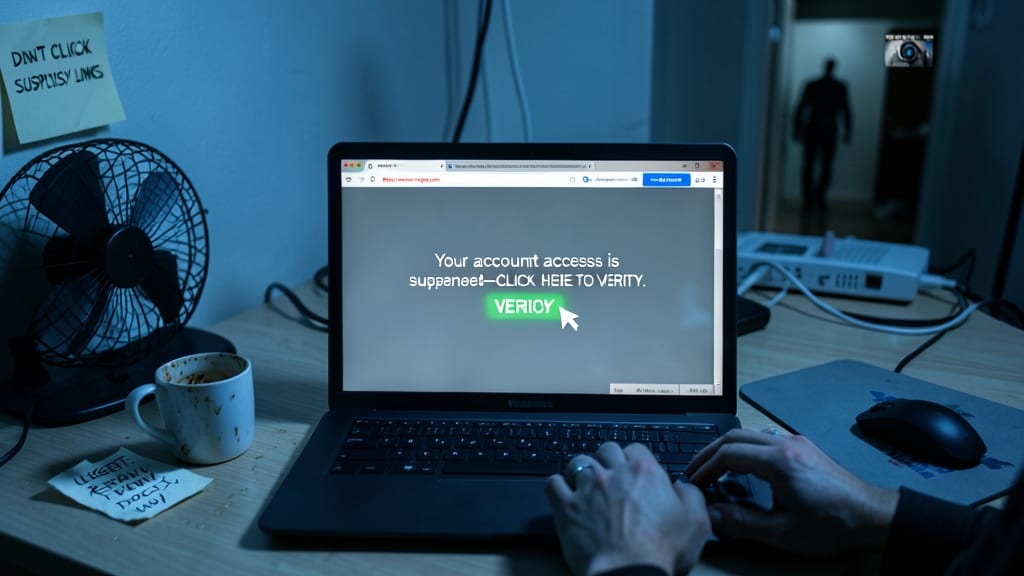
Phishing attacks remain the #1 way cybercriminals breach remote workspaces—yet most attacks succeed because victims don’t recognize the red flags. A single misclicked link in a fake "urgent" email can grant hackers access to your entire professional network, making this the most critical skill to master.
Train yourself to spot spoofed sender addresses (check for slight typos in domains like "paypa1.com" vs. "paypal.com"), suspicious links (hover to reveal true URLs before clicking), and high-pressure language like "verify your account NOW" or "your access is suspended." Tools like Google’s Phishing Quiz or KnowBe4’s free training modules let you practice identifying fake messages in real-world scenarios—without risking real accounts.
This skill is non-negotiable for anyone handling sensitive data, from freelancers to executives. Start with a 10-minute daily check of your spam folder to sharpen your eye—most phishing attempts land there first. 💡
Use a Dedicated Work Device
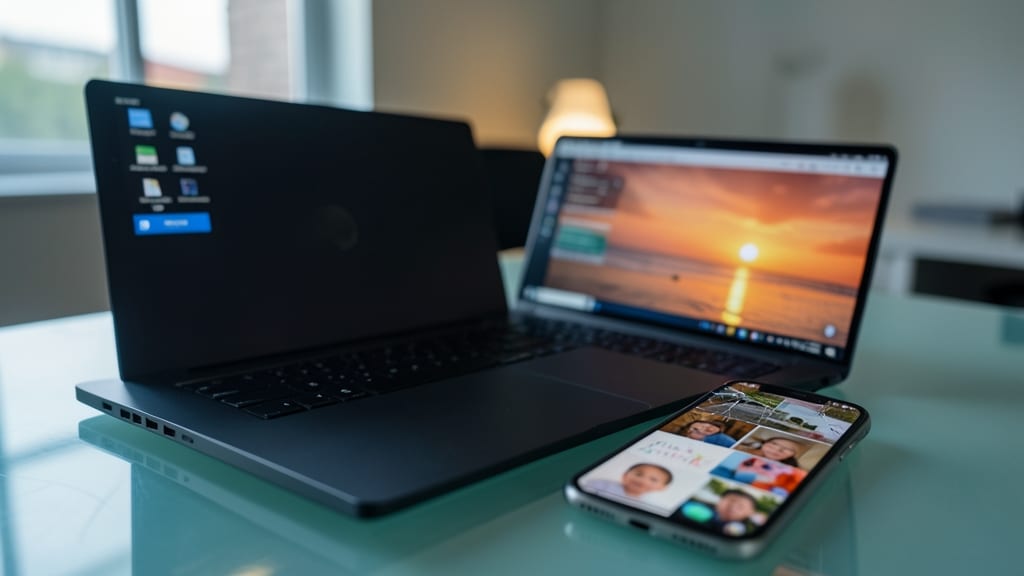
Merging work and personal life on a single device is like mixing oil and water—it never ends well. A dedicated work device creates a firewall between your company’s sensitive files and your personal photos, avoiding accidental leaks or compliance violations.
Most companies provide company-issued laptops with pre-installed security tools like Microsoft Intune or CrowdStrike, ensuring compliance with corporate policies. Even if you use a personal device, tools like VMware Workspace ONE or Jamf can segment work and personal data securely. This separation also simplifies IT support, as your employer can remotely manage security updates without touching your personal files.
This practice is ideal for employees handling client data, financial records, or proprietary projects. If your job involves sensitive information, a dedicated device isn’t just a best practice—it’s often a requirement. 💻
Monitor and Respond to Suspicious Activity
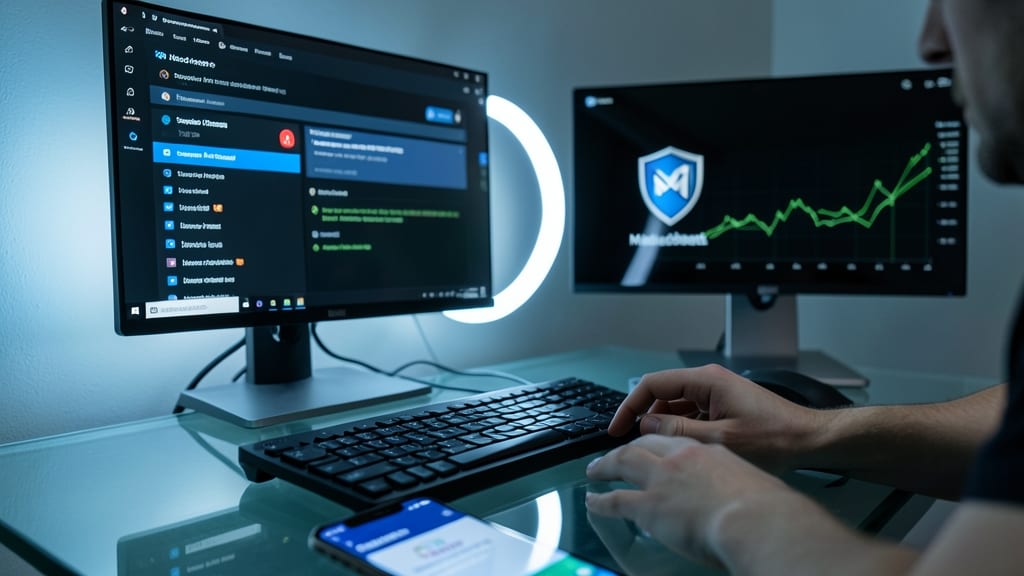
Even with all the right precautions, breaches can still happen—Windows Defender and tools like Malwarebytes act as your early warning system. These solutions monitor real-time activity, flagging unusual login attempts, unexpected file changes, or suspicious network connections before they escalate.
Most built-in security suites now include behavioral analysis, meaning they learn your normal patterns and alert you to deviations—like a sudden spike in data transfers or unfamiliar apps accessing your files. For extra layers, third-party tools like Darktrace or CrowdStrike offer advanced threat detection tailored to remote work environments.
This is especially critical for remote workers handling sensitive data—finance, healthcare, or corporate secrets. Set up alerts and review activity logs weekly to stay ahead of threats. 💪