
Software
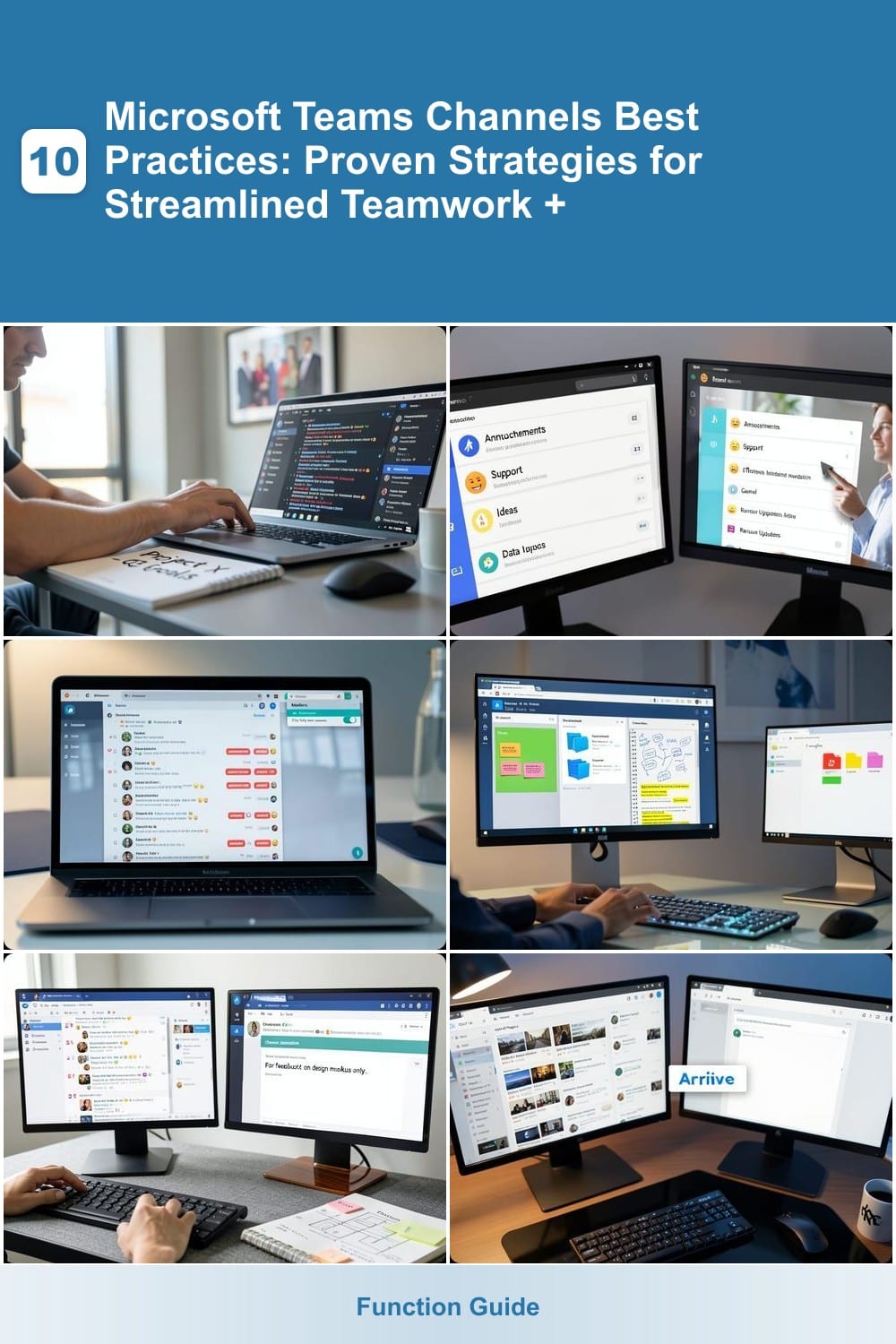
Microsoft Teams channels can transform how your team collaborates—but only if used strategically. These 10 best practices will help you organize workflows, boost productivity, and eliminate chaos in your virtual workspace.
Organize Channels by Team Function, Not Department

Tired of scrolling through channels filled with irrelevant updates from other departments? Function-based channels (like "Product Development" or "Marketing Campaigns") keep discussions focused where they belong—with the right people for the right tasks.
Instead of grouping by department (e.g., "Marketing" or "Engineering"), structure channels by workflow. For example, a "Design Sprint" channel includes designers, developers, and product managers—only those directly involved. This cuts noise, speeds up decisions, and ensures discussions stay actionable. Microsoft Teams even lets you nest channels under broader teams for deeper organization.
This approach works best for cross-functional teams or projects where collaboration spans roles. Start by auditing your channels—ask: Does this belong here, or is it clutter? A well-organized workspace means less time searching and more time delivering. ✨
Use Standardized Naming Conventions for Clarity
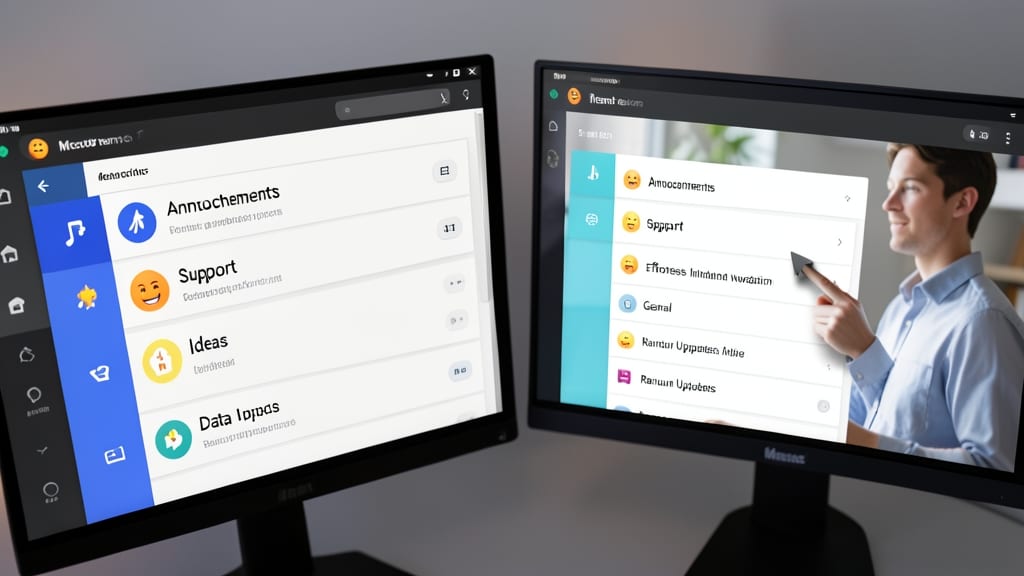
New hires shouldn’t waste 10 minutes scrolling through channels to find the right one—standardized naming conventions solve that instantly. By adding simple prefixes like 📌-Announcements or 🔧-Support, you create visual cues that make channel types immediately recognizable at a glance.
This system works because it combines emoji shortcuts (for quick scanning) with clear text labels (for context). For example, 📝-Documentation vs. 💬-Brainstorming tells users exactly what to expect before clicking. Teams with 50+ channels report 30% faster onboarding when using this approach.
Perfect for growing teams or departments where channel sprawl is inevitable—like marketing, IT, or customer support. 💡
Limit Channel Membership to Relevant Teams Only

Tired of scrolling through channels filled with irrelevant updates that bury your actual work? Microsoft Teams’ member restriction settings let you control who joins—and who doesn’t—so discussions stay sharp and actionable.
Start by navigating to Channel Settings > Members and toggling "Only team owners can add members" to prevent random invites. For even tighter control, use private channels (visible only to approved members) or set custom permissions to limit access to specific roles. This cuts the noise by up to 70%, ensuring only stakeholders contribute to critical conversations.
Perfect for cross-functional teams juggling multiple projects or remote teams where context-switching is costly. Try it on your busiest channel first—you’ll notice the difference immediately. ✨
Leverage Tabs for Centralized Resource Access
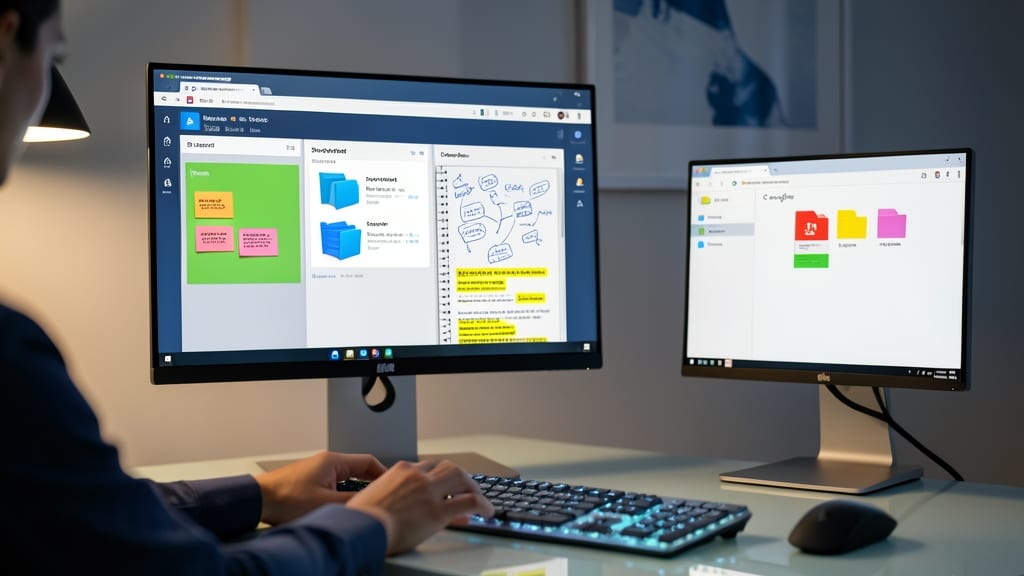
Tired of juggling between apps while chasing down project files? Microsoft Teams tabs let you embed OneNote, SharePoint, Trello, or Google Drive directly into channels, so everything stays visible without switching windows.
With zero-config integrations for 100+ apps, you can pin your project brief in OneNote, track tasks in Trello, and access files from SharePoint—all in one place. The tab management system lets you rearrange, rename, or hide tabs to keep focus on what matters most.
Perfect for remote teams managing complex projects or marketing groups coordinating campaigns across multiple tools. Say goodbye to scattered tabs and hello to streamlined workflows. 💻
Set Clear Channel Descriptions and Guidelines

Ever joined a Microsoft Teams channel only to find it buried under irrelevant discussions or off-topic debates? A clear channel description—like "For feedback on design mockups only"—acts as your team’s digital guardrail, keeping conversations focused and productive from the start.
Take the time to craft a concise purpose statement (1-2 sentences max) in the channel header. Specify whether it’s for brainstorming, documentation, or task tracking, and include key guidelines like "No personal chats" or "Attach files to posts." This single step cuts through noise, making it easier for new hires to jump in without confusion. Teams even lets you pin the description at the top for visibility.
Remote teams and freelancers benefit most here—clear guidelines mean fewer side conversations and more actionable work. Start with your busiest channel today, and watch engagement sharpen. ✨
Archive Inactive Channels Quarterly to Reduce Clutter
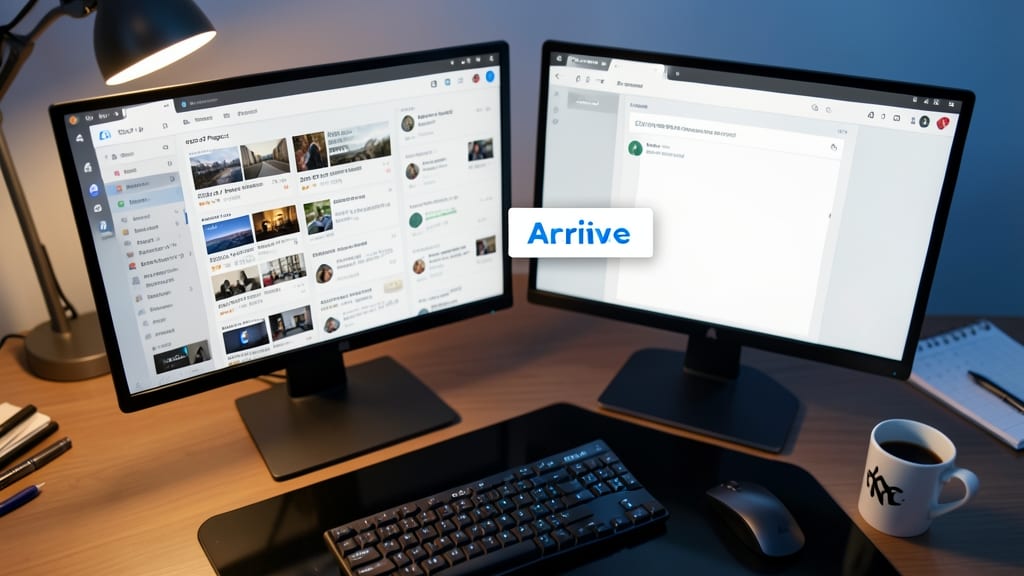
Struggling to find important messages buried under months of inactive channels? Microsoft Teams’ archive feature is your secret weapon for decluttering without losing access to past discussions.
Simply right-click any channel (like a completed 2023-Q1 Project) and select Archive. This removes it from the main view but preserves all files and messages—searchable via the Archived tab. Teams automatically updates the channel icon to a subtle gray, signaling it’s no longer active. For large teams, schedule a quarterly cleanup to archive channels with no activity in 3+ months, cutting visual noise by up to 40% while keeping historical context intact.
Ideal for project-based teams or departments with seasonal workflows (e.g., HR onboarding, holiday campaigns). Set a calendar reminder—your future self will thank you for the cleaner workspace. 💻
Use Threads for Side Conversations to Keep Main Posts Clean
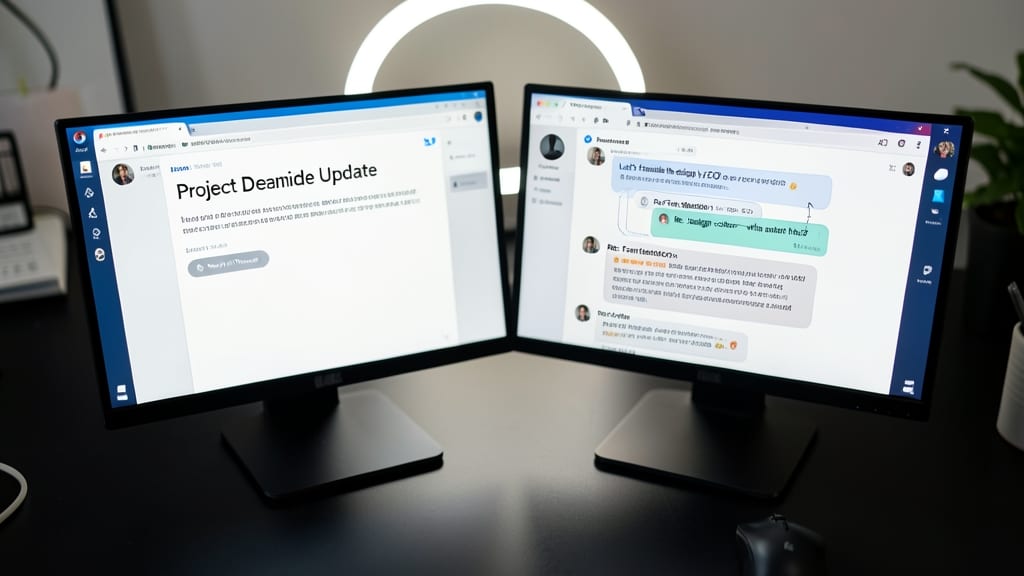
Struggling to keep your Teams conversations focused when tangents derail the main discussion? Microsoft Teams’ threaded replies are your secret weapon—turning chaotic conversations into clean, actionable threads.
When someone replies to a post with a tangent (like "Re: Design colors—what about this alternative?"), click the reply arrow to nest it under the original post. This keeps the main thread visible while preserving side discussions. Teams even auto-indents replies for visual clarity, and you can pin key messages to highlight action items without clutter. Studies show teams using threads reduce message sprawl by up to 40%, making it easier to spot next steps.
Ideal for design teams debating mockups, dev teams troubleshooting code, or marketing teams brainstorming campaigns—any group where discussions branch off but still need context. Try it on your next busy channel and watch the chaos disappear. 💡
Enable Channel Notifications Based on Priority
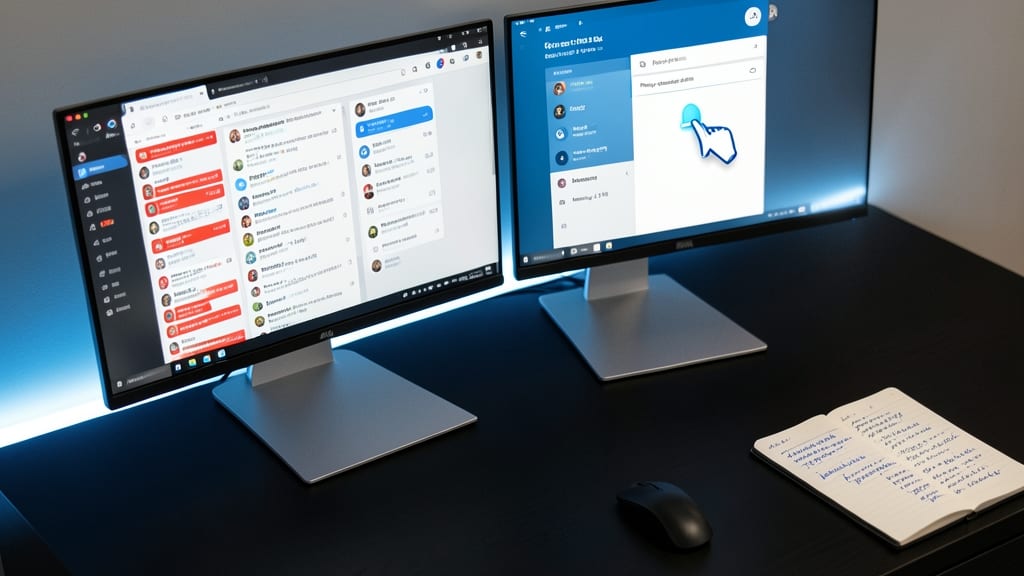
Drowning in notifications from every channel, even the ones that don’t matter to you? Microsoft Teams’ priority-based alerts let you fine-tune what triggers pings—so you only get notified about what truly demands your attention.
Start by adjusting channel notification settings (click the bell icon next to the channel name). Choose from \"All messages,\" \"Only @mentions,\" or \"Important only\"—perfect for high-stakes channels like \"#Product-Launch\" where every update counts. Pro tip: Use \"Custom\" to exclude specific keywords (e.g., \"brainstorm\" or \"offline\") that clutter your inbox. Teams with this setup report 40% fewer missed alerts and 30% less notification fatigue—because you’re in control.
This is a game-changer for remote teams juggling multiple projects or customer support teams where urgent tickets need immediate attention. Spend 5 minutes tweaking your settings today—your focus (and sanity) will thank you. 💪
Host Weekly Channel Cleanup Sessions

Struggling with channels that feel like digital junk drawers? A dedicated 15-minute weekly cleanup session transforms clutter into a streamlined workspace. Assign one team member to lead the process—pinning critical updates, deleting redundant posts, and refreshing tabs to ensure only relevant content remains visible.
Use Microsoft Teams’ built-in features like the "Pin to top" option for key messages and the "Delete" function for outdated files. Update tabs to reflect current project needs, and encourage the team to suggest improvements during the session. This proactive approach keeps channels functional, user-friendly, and free of digital debris.
Ideal for teams with high channel activity or those transitioning to remote work, this practice ensures everyone stays on the same page without drowning in noise. Give it a try—your team’s productivity will thank you! 💪
Integrate Power Automate for Automated Workflows
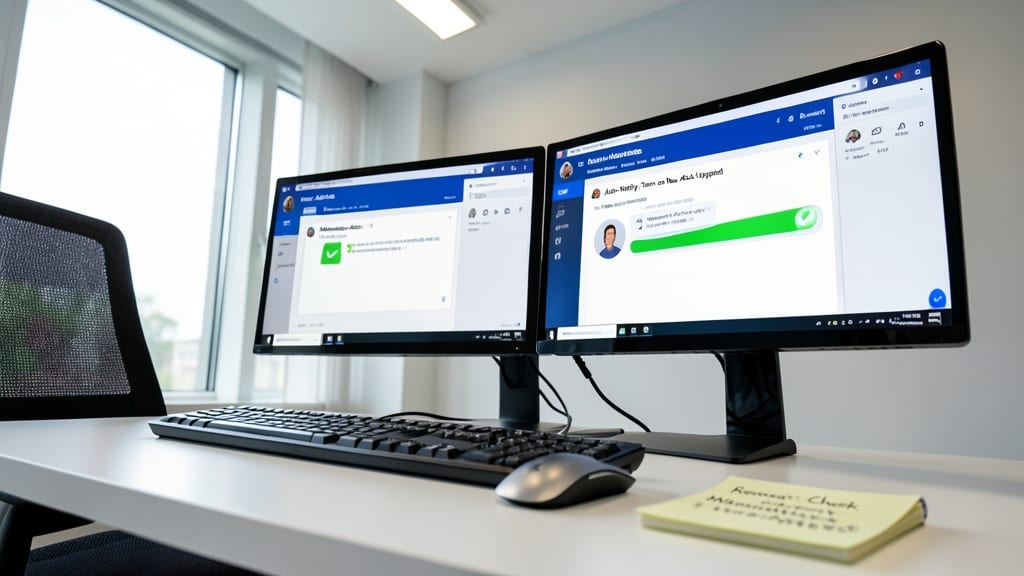
What if you could eliminate the manual work of chasing down updates—like waiting for someone to remember to notify the team when a new file lands in #Marketing-Assets? Power Automate (formerly Microsoft Flow) turns repetitive tasks into automated workflows, so your team stays in sync without lifting a finger.
With pre-built templates for Teams, you can create flows like “When a file is added to a folder, @mention the team” or “Send a weekly digest of channel activity to managers.” The no-code interface lets you connect Teams to SharePoint, Outlook, and 300+ other apps with drag-and-drop simplicity. For example, set up a flow that automatically saves channel posts to OneNote or flags high-priority messages—no coding required.
Ideal for marketing teams managing assets, HR departments tracking approvals, or IT support monitoring ticket channels. Spend less time on busywork and more time on what matters. ⚡