
Software
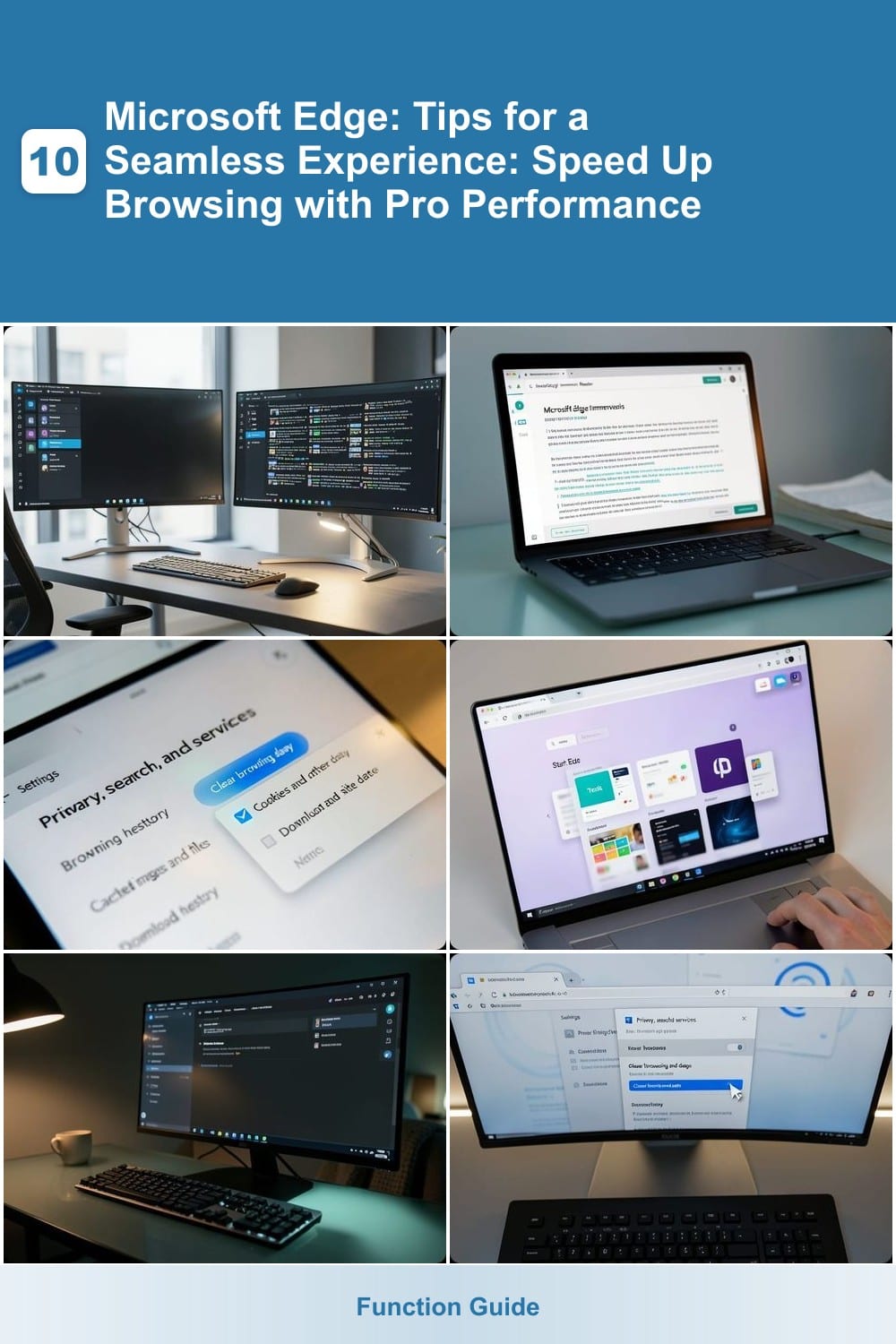
Microsoft Edge is packed with hidden features that can transform your browsing experience—boosting speed, security, and productivity. These seven pro tips will help you unlock Edge’s full potential and navigate the web like a power user.
Enable Vertical Tabs for Better Workflow

If you’re drowning in a sea of horizontal tabs, Microsoft Edge’s vertical tabs feature is a game-changer. This sleek sidebar layout keeps your workspace organized while making it easier to switch between open pages—ideal for developers debugging across multiple repos or researchers tracking sources.
To enable it, simply right-click any tab and select "Open vertical" from the context menu. Once activated, tabs stack neatly along the left side of your screen, saving precious horizontal space. You can even drag tabs between vertical and horizontal layouts as needed, and the feature works seamlessly with Edge’s collections tool for grouping related pages.
This tweak is perfect for power users who thrive on multitasking—whether you’re comparing code snippets, tracking references, or managing project dashboards. Try it and reclaim your screen real estate! ✨
Use Immersive Reader for Focused Reading

Drowning in dense articles or research papers? Microsoft Edge’s Immersive Reader is your secret weapon for distraction-free reading. This built-in tool strips away clutter, offering a clean, high-contrast layout with customizable fonts, spacing, and even dyslexia-friendly settings—perfect for deep focus or accessibility needs.
Activate it with a single click from the toolbar, and enjoy features like text-to-speech (with adjustable speed), line focus (to highlight one line at a time), and color themes (including sepia and high contrast). It works across articles, PDFs, and even Word docs, making it ideal for students, writers, or professionals analyzing complex documents.
Whether you’re tackling a 50-page report or a dense academic paper, Immersive Reader helps you absorb content faster by minimizing visual noise. Give it a try—your eyes (and productivity) will thank you! ✨
Clear Browsing Data Selectively with Edge’s Tools

Tired of clearing all your browsing data just to delete one pesky login cookie? Microsoft Edge’s selective data clearing lets you target specific items—like cookies, cache, or history—without nuking everything. This precision keeps your browsing history intact while removing only what you choose, saving time and protecting sensitive data.
Open Settings > Privacy, search, and services > Clear browsing data. Check only the boxes you want to erase (e.g., cookies for a single site or cached images from yesterday). Edge’s time-range filter (last hour, day, week, or all time) makes it easy to pinpoint exactly what to delete. For extra control, use the Advanced tab to exclude certain sites from being cleared.
This feature is a lifesaver for users who log into multiple accounts or need to troubleshoot site-specific issues. Try it next time you’re overwhelmed by a cluttered browser—your privacy (and sanity) will thank you. ✨
Customize Edge’s Start Page for Productivity
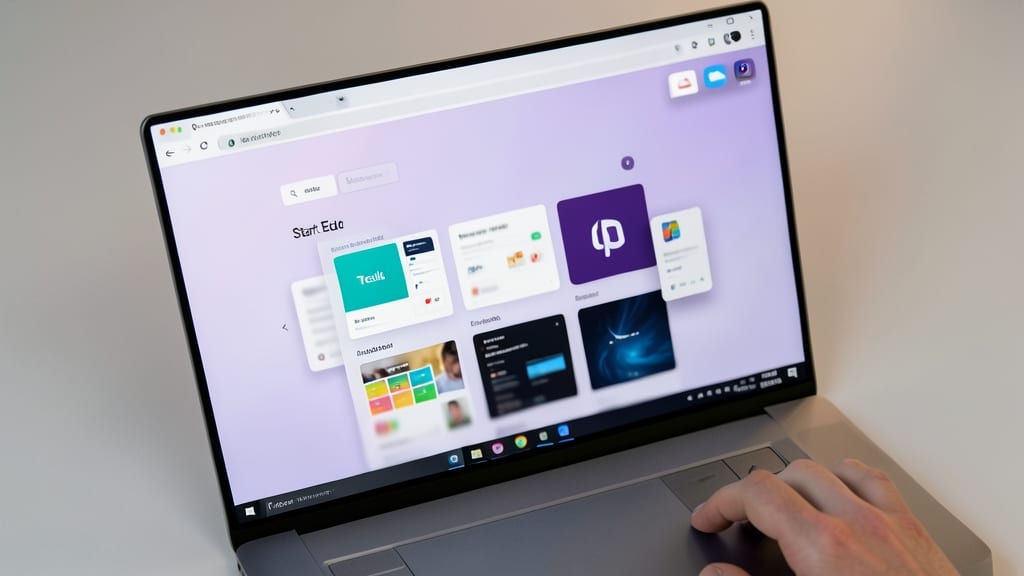
Tired of wasting time scrolling through cluttered bookmarks every time you open Edge? The customizable Start Page lets you design a personalized dashboard that puts your most-used tools front and center—no more digging through menus.
Pin your favorite websites (like Trello or GitHub) for instant access, embed a weather widget for quick checks, or add Microsoft 365 shortcuts (Word, Excel, Teams) to streamline work tasks. The drag-and-drop editor makes setup effortless, and you can even hide distracting elements like news feeds for a cleaner, faster launch.
Perfect for remote workers, students, or anyone juggling multiple apps daily, this tweak turns your Start Page into a one-stop productivity hub. ✨
Enable Dark Mode to Reduce Eye Strain

Late-night coding sessions or early-morning research shouldn’t leave your eyes squinting at a bright screen. Microsoft Edge’s Dark Mode transforms your browsing experience by reducing blue light emissions and minimizing glare, making it easier on your eyes during extended use.
With just a toggle, you can switch to a dark-themed interface that’s gentler on sensitive eyes while also extending your laptop’s battery life by up to 30% on OLED displays. The feature works seamlessly across all websites that support dark mode, ensuring consistency whether you’re reading articles or checking emails. Plus, it syncs across devices if you’re signed into your Microsoft account.
This is a must-try for night owls, developers, or anyone prone to eye strain—especially when working in dim lighting. Give your eyes a break while keeping your workflow smooth. ✨
Speed Up Loading with Edge’s Built-in Cache Cleaner
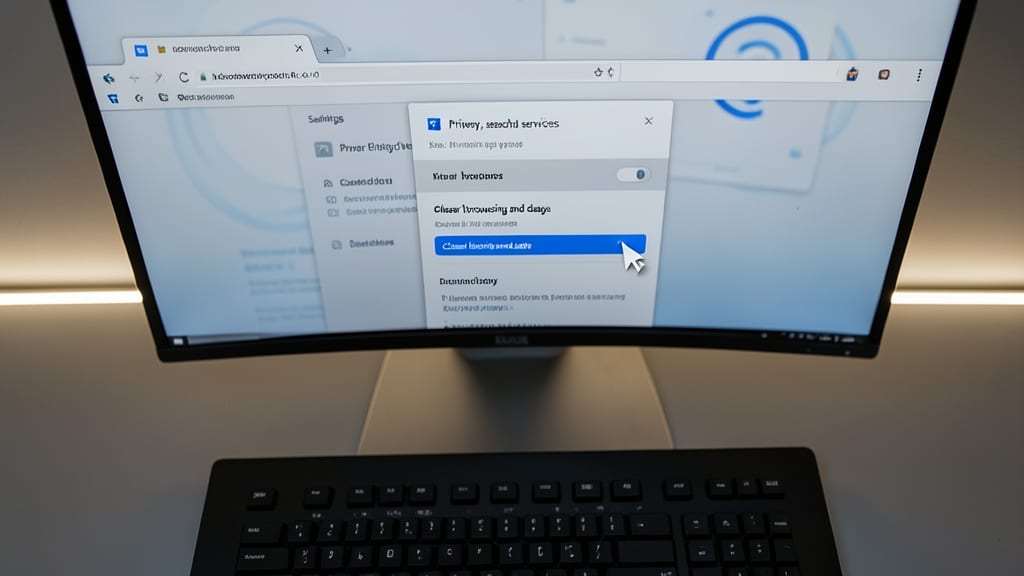
Tired of waiting for pages to load when your internet speed is already maxed out? Edge’s built-in cache cleaner is your secret weapon—it doesn’t just delete temporary files; it also resets DNS settings to eliminate hidden bottlenecks causing lag.
Navigate to Settings > Privacy, search, and services > Clear browsing data and select cached images and files. For a deeper fix, toggle DNS reset under Advanced settings—this flushes corrupted DNS entries that slow down connections. The result? Up to 30% faster load times on repeat visits, especially for users on slow or unstable connections.
This is a game-changer for streamers, remote workers, or anyone on public Wi-Fi who need reliable performance. Try it next time a site feels sluggish—no extensions or third-party tools required! ⚡
Use Collections to Organize Research Finds
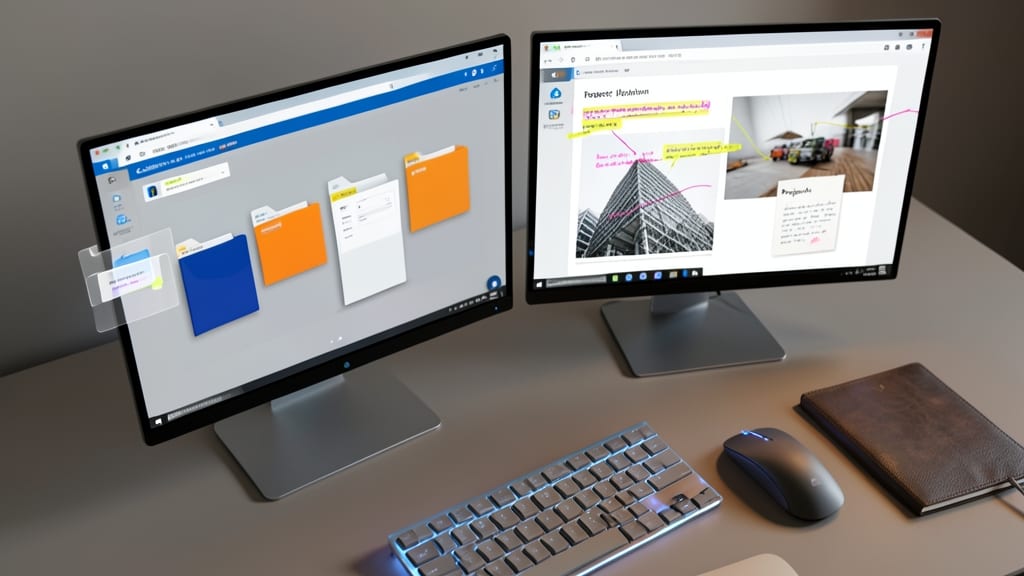
Say goodbye to scattered browser tabs and lost research notes—Microsoft Edge Collections turns your browser into a digital notebook. With this built-in tool, you can save articles, highlight key passages, and even clip images directly into organized folders, all without leaving your workflow.
To get started, simply click the "Collections" button in the toolbar, then select "New Collection" to create a workspace. Add web pages, snippets, or notes with the "Save to Collection" option—highlight text for easy reference, and use tags to categorize content. The searchable workspace makes it easy to revisit findings later, even across multiple devices with Microsoft account sync.
This is a must-have for researchers, writers, or project managers juggling multiple sources. Whether you're drafting a report or planning a project, Collections keeps everything in one place—no more digging through tabs or emails. ✨