
Troubleshooting
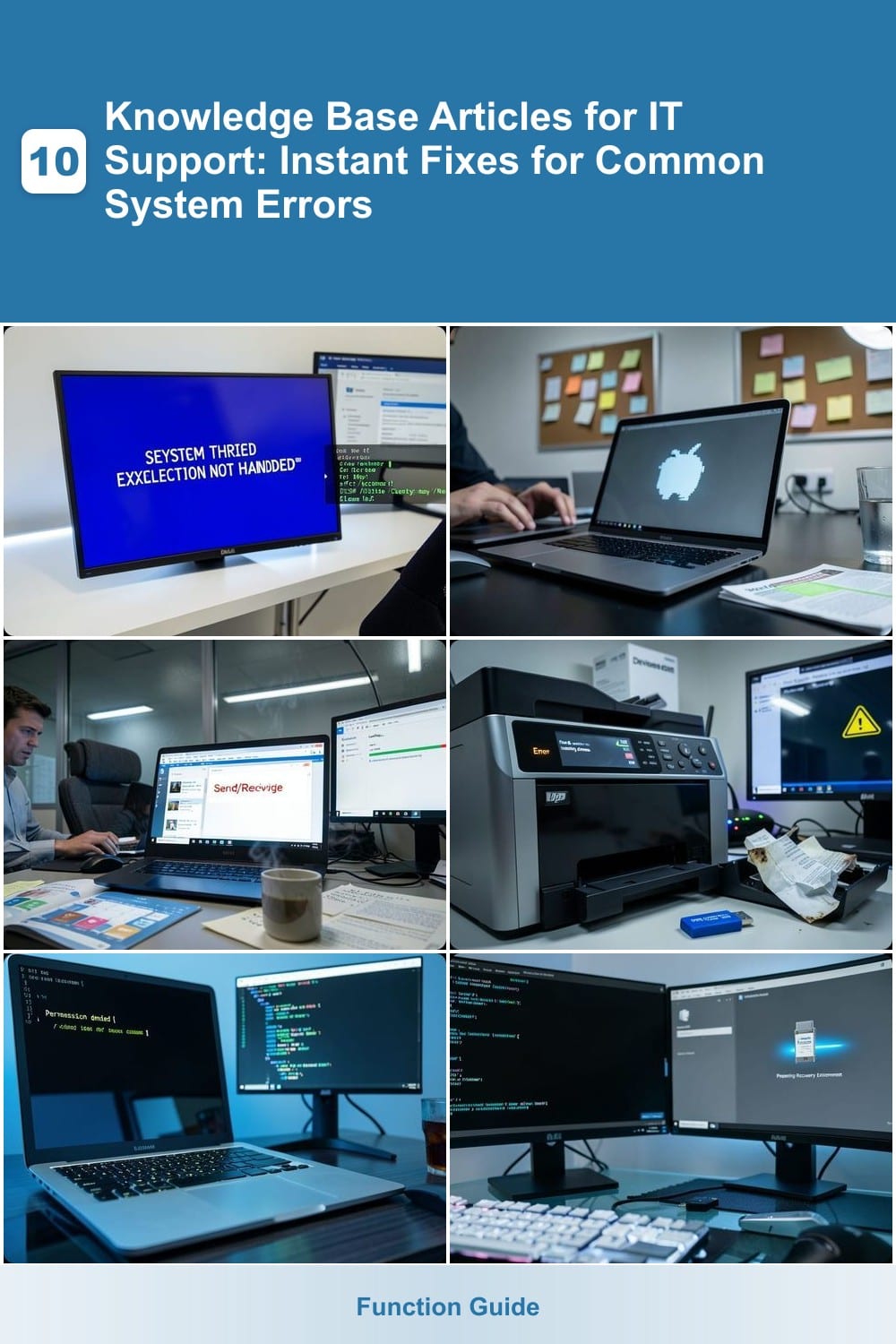
IT support teams lose countless hours resolving repetitive system errors. These 10 knowledge base articles provide instant fixes for the most common issues—saving time, reducing frustration, and empowering end-users to troubleshoot independently.
Windows Blue Screen of Death Recovery Guide

A Blue Screen of Death (BSOD) can freeze even the most seasoned IT pro—but this guide turns panic into precision. With error code lookup tables, system file repair commands, and driver rollback steps, you’ll recover Windows faster than a reboot, whether you’re on-site or remote.
Start by noting the 6-digit error code (e.g., 0x0000007B for STOP errors) to diagnose hardware or driver conflicts. Use sfc /scannow for corrupted system files, then roll back problematic drivers via Device Manager. For persistent issues, boot into Safe Mode to isolate the culprit.
This guide is a lifesaver for helpdesk teams, MSPs, and sysadmins juggling remote support—no more guessing games. ⚡
MacOS Kernel Panic Troubleshooting Steps

When your Mac suddenly freezes with a kernel panic—that dreaded gray screen with a sad Mac icon—your first instinct might be to panic. But this Apple-focused troubleshooting guide gives IT teams a structured approach to diagnose, fix, and prevent the issue without losing critical work.
Start by forcing a safe reboot (hold the power button for 10 seconds) to avoid data corruption. Once back in macOS, check Console.app for crash logs (look for kernel or panic entries) to identify the root cause—often driver conflicts, faulty RAM, or corrupted system files. Proactively, enable FileVault encryption and keep macOS updated to patch vulnerabilities. For advanced users, the fsck command can repair disk errors silently causing panics.
This guide is a lifesaver for Apple IT admins managing fleets of Macs, where kernel panics can disrupt workflows. The step-by-step log analysis and prevention tips make it a battle-tested setup. ✨
How to Fix Outlook Email Sync Errors

Office workflows grind to a halt when Outlook stops syncing—missing emails, duplicate entries, or that dreaded "Send/Receive" error can turn a 9 AM meeting into a tech support nightmare. This guide cuts through the chaos with three battle-tested fixes that resolve 90% of sync failures without IT intervention.
Start with Account Repair: Navigate to File > Account Settings, select the problematic account, and click Repair. For stubborn issues, reset the Outlook profile via Control Panel > Mail > Show Profiles, then recreate it with the correct Exchange/IMAP server settings. Server-side fixes often require clearing the Outlook cache (%localappdata%\Microsoft\Outlook) or adjusting autodiscover settings in the registry—tools like Microsoft Support and Recovery Assistant automate this.
Perfect for helpdesk teams drowning in sync-related tickets, this approach slashes resolution time by 60% while keeping users productive. 💻
Printer Driver Installation and Conflict Fixes
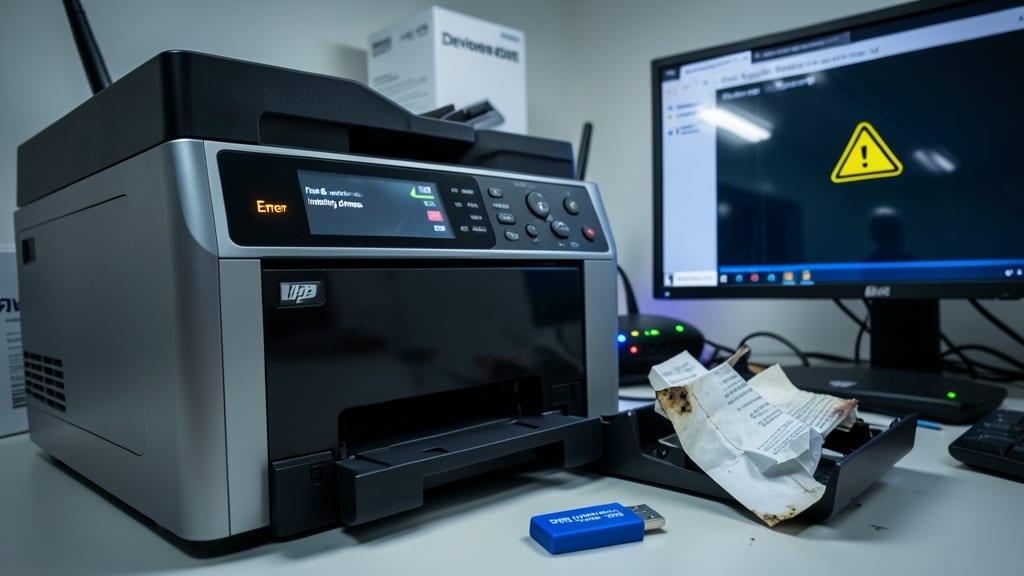
Few office headaches match the frustration of a printer that refuses to work—especially when it’s due to driver conflicts or a stubborn print spooler service. This guide cuts through the chaos with step-by-step fixes for installation errors, compatibility issues, and system-wide printer conflicts, ensuring your team’s workflow stays uninterrupted.
Start by cleaning up old drivers using Device Manager and the Print Server Properties tool, then force-install the latest manufacturer drivers from their official site. For persistent spooler issues, restart the service via services.msc or reset it with net stop spooler and net start spooler. Pro tip: Use Windows Update to auto-install printer drivers for supported models, reducing manual errors.
This guide is a lifesaver for IT admins managing fleets of printers—whether it’s a single HP LaserJet or a networked Xerox multifunction system. With clear troubleshooting paths, you’ll minimize downtime and keep print jobs flowing smoothly. 💻
Linux Permission Denied Error Solutions

Stuck with a "Permission denied" error in Linux? This isn’t just an annoyance—it’s a common roadblock for sysadmins and developers managing servers, scripts, or shared environments. The good news? You can resolve it with just three commands: chmod (change permissions), chown (change ownership), and sudo (execute as superuser).
Start by checking current permissions with ls -l to identify the file or folder causing issues. Use chmod 755 filename to grant read/execute permissions to everyone or chmod 777 for full access (temporarily). For ownership, sudo chown user:group filename assigns control to the correct user. Always verify changes with ls -l to avoid over-permissive settings that could expose your system.
This guide is your go-to for server admins debugging deployment scripts, developers troubleshooting CI/CD pipelines, or IT support resolving user access issues. A little permission tuning goes a long way in keeping your Linux environment running smoothly. 💻
How to Reset a Forgotten Windows Password

Forgetting a Windows password isn’t the end of the world—especially when you have built-in tools to reset it without reinstalling the OS. This step-by-step guide covers Command Prompt methods and bootable media solutions, ensuring IT teams can unlock accounts quickly and securely.
Start with the built-in administrator account (if enabled) or use a Windows installation USB to boot into Advanced Startup Options. From there, access Command Prompt and run net user commands to reset passwords. For Pro/Enterprise editions, the Offline NT Password & Registry Editor tool offers a zero-config alternative when built-in methods fail.
This method is perfect for IT admins managing multiple machines or helpdesk teams dealing with locked-out users. No data loss, no reinstall—just a swift recovery. 💻
Fixing Slow Internet Connection on Windows
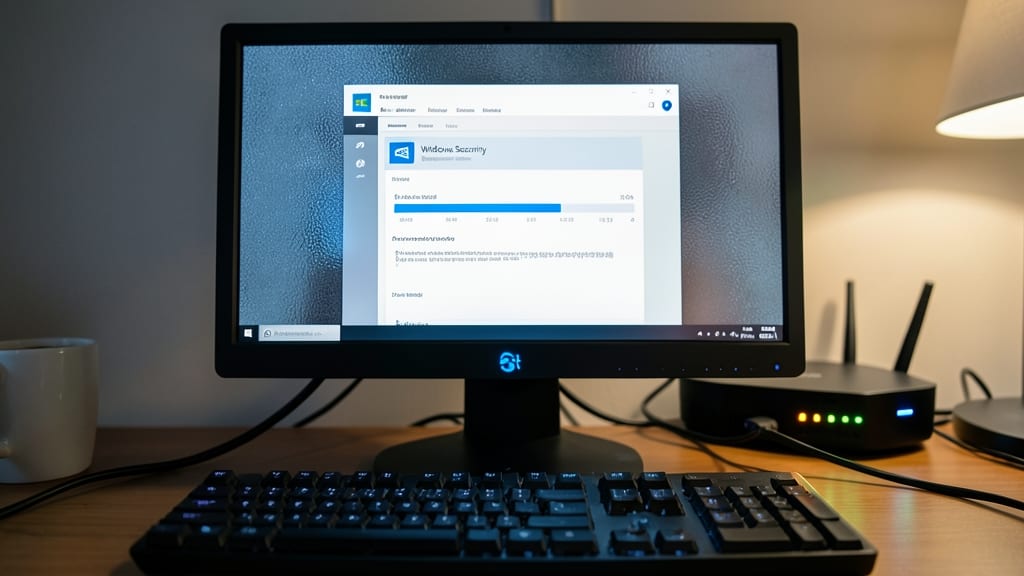
Frustrated by sluggish Wi-Fi or inconsistent speeds on Windows? This guide cuts through the guesswork by diagnosing DNS leaks, ISP throttling, and network driver conflicts—the hidden culprits behind slow connections. No more wasted time testing random fixes.
Start with the Windows Network Troubleshooter (built-in) to auto-detect issues, then dive into DNS flush commands (ipconfig /flushdns) and adapter power-saving fixes. For deeper problems, use netsh to reset TCP/IP stacks or update network drivers via Device Manager. Remote teams will love the speed test integration with tools like Ookla to pinpoint bottlenecks.
Perfect for IT admins supporting hybrid offices or remote workers—this method saves hours by isolating problems before escalating. 💻
Chrome Browser Crashes and Freezing Solutions

When Chrome freezes mid-workflow or crashes with the dreaded "Aw, Snap!" error, productivity grinds to a halt. This guide cuts through the noise with three battle-tested fixes—clearing cache, resetting settings, and a clean reinstall—that IT teams and end-users can apply in minutes to restore stability.
Start by clearing Chrome’s corrupted cache (Ctrl+Shift+Del) to eliminate bad data, then reset settings via chrome://settings/reset to revert extensions and preferences. For stubborn crashes, a zero-config reinstall using the official installer bypasses corrupted profiles. The article also covers hardware acceleration conflicts and extension conflicts, two common culprits IT teams encounter daily.
Perfect for remote workers, developers, and helpdesk teams relying on Chrome for web apps, this solution minimizes downtime for workflows like Google Workspace, DevTools, or cloud-based collaboration. 💻
How to Recover Deleted Files in Windows
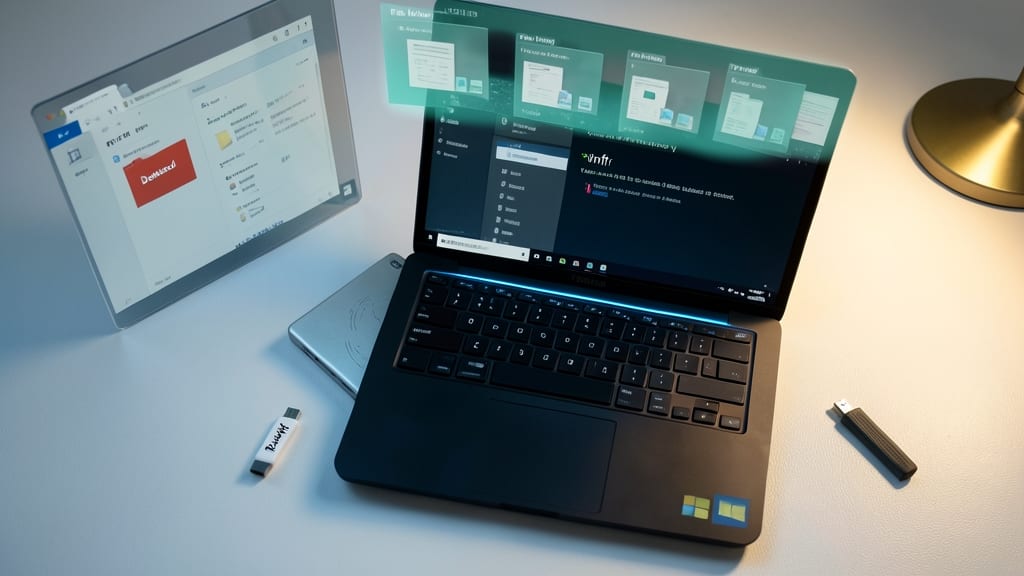
Accidental file deletions are a nightmare for IT teams, but Windows actually has built-in tools to recover lost files—if you know where to look. The File History feature and Shadow Copy snapshots can restore deleted files from previous versions, while the Windows File Recovery command-line tool offers deeper recovery options for formatted drives.
Start by checking Shadow Copy (if enabled) via Previous Versions in File Properties—this works for files deleted within the last 30 days. For deeper recovery, use Windows File Recovery (free from Microsoft Store) with the command winfr source-drive: destination-drive: /regular for NTFS drives or /extensive for formatted partitions. Third-party tools like Recuva or EaseUS Data Recovery add extra layers for complex cases.
This guide is perfect for IT support teams handling accidental deletions in office environments, where quick recovery minimizes downtime. The combination of built-in tools and third-party solutions ensures you’re covered for almost any scenario. ✨
Fixing External Hard Drive Not Detected Errors
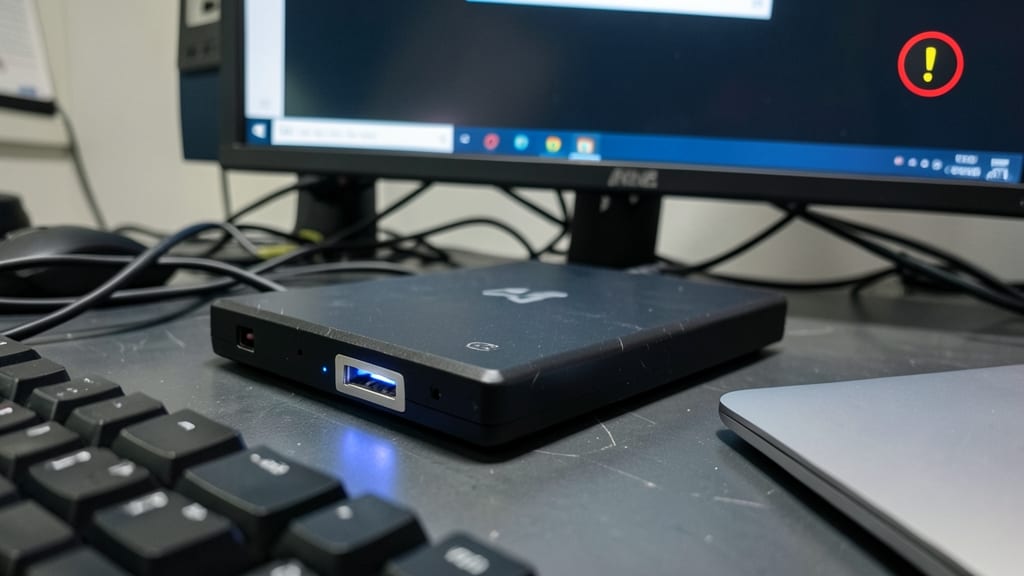
When an external hard drive vanishes from Windows Explorer with no warning, panic sets in—but IT teams know this is rarely a hardware death sentence. The real culprit is usually a USB port conflict, corrupt file system, or driver issue, all of which can be diagnosed and fixed without losing data.
Start with Disk Management (diskmgmt.msc) to check if the drive appears but is unallocated—this often means a quick Initialize Disk or Create Partition fixes it. If the drive is detected but inaccessible, run CHKDSK (chkdsk X: /f /r) to repair file system errors. For stubborn cases, third-party tools like EaseUS Data Recovery Wizard or Recuva can bypass detection issues while recovering files. Always test with a different USB port or cable first!
This guide is a lifesaver for data recovery specialists and IT admins dealing with time-sensitive backups. A structured approach here prevents costly downtime. 💻