
Tip & Trick
Struggling to find files in your Microsoft ecosystem? Proper file naming saves time and prevents chaos. These seven Microsoft file naming best practices will transform your digital organization from messy to masterful—whether you use Windows, OneDrive, or Office 365.
Date-Based Prefix Format for Timestamps
If deadlines and version tracking feel like a guessing game, a date-based prefix format (YYYYMMDD) turns chaos into clarity. This system ensures every file—whether in SharePoint or Teams—starts with a standardized timestamp, making it effortless to sort, filter, and reference documents by creation or due date.
The YYYYMMDD structure (e.g., 20240515_ProjectPlan.docx) eliminates ambiguity by removing reliance on human-readable dates (like "May15" vs. "15May"). It’s universally compatible across Windows, macOS, and Linux, and works seamlessly with Microsoft’s search tools. For teams, this format also integrates flawlessly with automated workflows in Power Automate or SharePoint libraries.
Project managers and collaborative teams will love this—it’s the backbone of structured file systems, especially when deadlines are tight. ⚡
Hyphenated Keywords for Searchability
Tired of scrolling through endless "Document1" files in OneDrive? Hyphenated keywords are the secret weapon for freelancers and creatives drowning in media libraries. Unlike spaces or underscores, hyphens (-) ensure your files appear in search results exactly as you type them—no surprises.
Microsoft’s Windows Search and OneDrive prioritize hyphens for metadata indexing, making "Project-Branding-Guidev2.pdf" far easier to find than "ProjectBrandingGuidev2.pdf" or "Project Branding Guide v2.pdf". Test it yourself: search for "branding" in OneDrive—hyphenated files rank higher. For extra clarity, combine hyphens with version suffixes (e.g., Client-Logo-Design-v3.ai).
This method shines for photographers, designers, and marketers juggling client projects. Just avoid leading/trailing hyphens (e.g., "-Project")—they confuse search algorithms. ✨
Version Control with Suffix Numbers
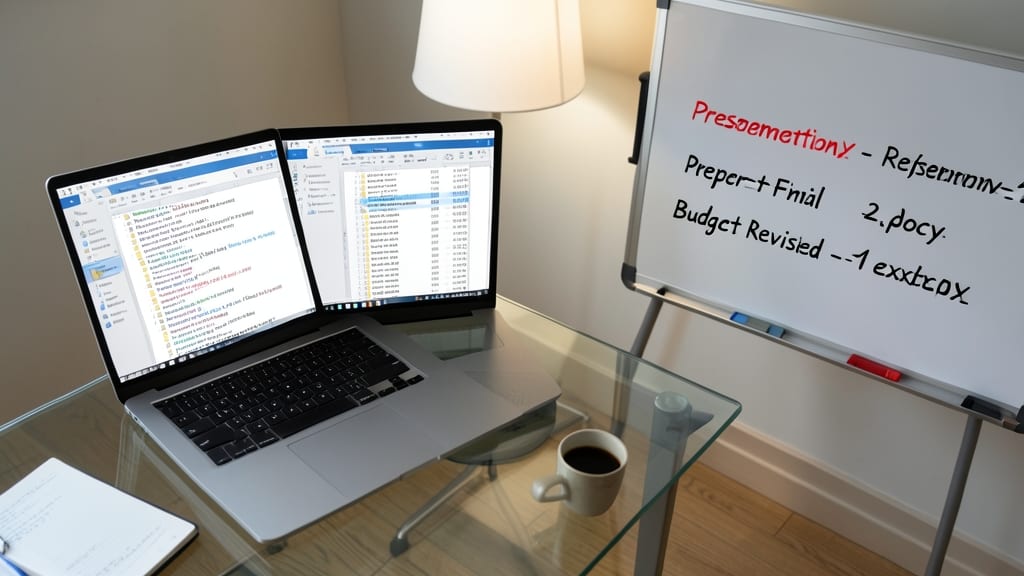
Tired of sifting through files named "Finalv2REALfinal.docx" in Outlook? Suffix numbers with underscores (like Presentationv4.pptx) create instant clarity for your team, especially when tracking revisions in PowerPoint or Excel. This method avoids the ambiguity of version numbers buried in filenames while keeping everything readable at a glance.
Microsoft’s Office Suite and Outlook handle underscores seamlessly, and the pattern scales effortlessly for collaborative projects. Start with Draft1, then progress to Final3—no more guessing whether v2_final is the latest or an abandoned draft. The underscore acts as a visual separator, making it easy to sort files alphabetically or filter by version.
This system shines for marketing teams, legal firms, or any group sharing files via email or cloud drives. It’s simple enough for non-technical users but robust enough to replace clunky version control tools. ⚡
Department/Project Code Abbreviations
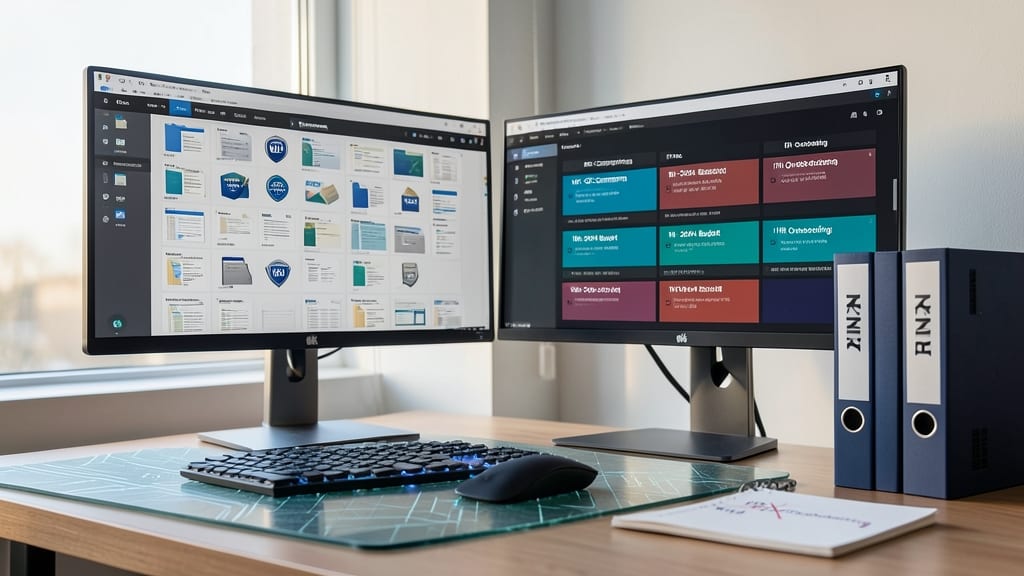
Frustrated when files labeled HR-2024-Q1 suddenly appear in your Finance folder? Department/project codes solve this by creating a universal language across teams. Instead of guessing where a file belongs, a structure like MKT-Q2-Campaign instantly tells everyone it’s a Marketing project tied to Q2, with clear ownership.
This system thrives in SharePoint libraries or OneDrive team folders, where files frequently move between departments. Use 3-letter department codes (e.g., FIN for Finance, IT for IT) followed by quarter/year (e.g., Q3-2024) and a descriptive suffix (e.g., Budget_Review). Microsoft’s Office Suite and Teams integrate seamlessly with this format, making file recovery effortless.
Perfect for enterprise teams managing cross-departmental projects—think legal handing off files to HR or IT sharing specs with Marketing. With a standardized system, no more "Where did that file go?" emails. ✨
Avoid Special Characters and Spaces

Ever hit "Save" only to watch your script or macro fail because of a sneaky space or special character in the filename? Developers and automation users know this pain all too well—one misplaced symbol can break workflows, cloud syncs, or even PowerShell commands.
Microsoft’s file systems (and most cloud services) play nice only with letters (A-Z, a-z), numbers (0-9), hyphens (-), and underscores (_). Avoid spaces, slashes (/\), backticks (`), colons (:), or symbols like @#$%—they’ll cause errors when parsing filenames in scripts, batch files, or automation tools. Even emojis (😊) or Unicode characters can disrupt syncs in OneDrive or SharePoint.
This rule is non-negotiable for PowerShell, Python scripts, or CI/CD pipelines—stick to this safe set to ensure your files play well everywhere. ⚡
Consistent Case Sensitivity Rules

Shared drives become a nightmare when "Projects" and "projects" coexist—until you enforce consistent case sensitivity rules. This isn’t just about aesthetics; it’s about eliminating confusion when files are accessed across Windows, macOS, and Linux systems, where case sensitivity behaves differently.
Start by using all-caps for folders (e.g., PROJECTS, DOCUMENTS) to ensure visibility everywhere. Then apply title case for files (e.g., QuarterlySalesReport.pdf instead of quarterlysalesreport.pdf). This approach works because Windows ignores case sensitivity by default, while macOS/Linux respect it—so your files stay consistent no matter the OS. The key? Stick to this rule religiously, and shared drives become predictable. ⚡
Metadata Tags Over Filename Clutter
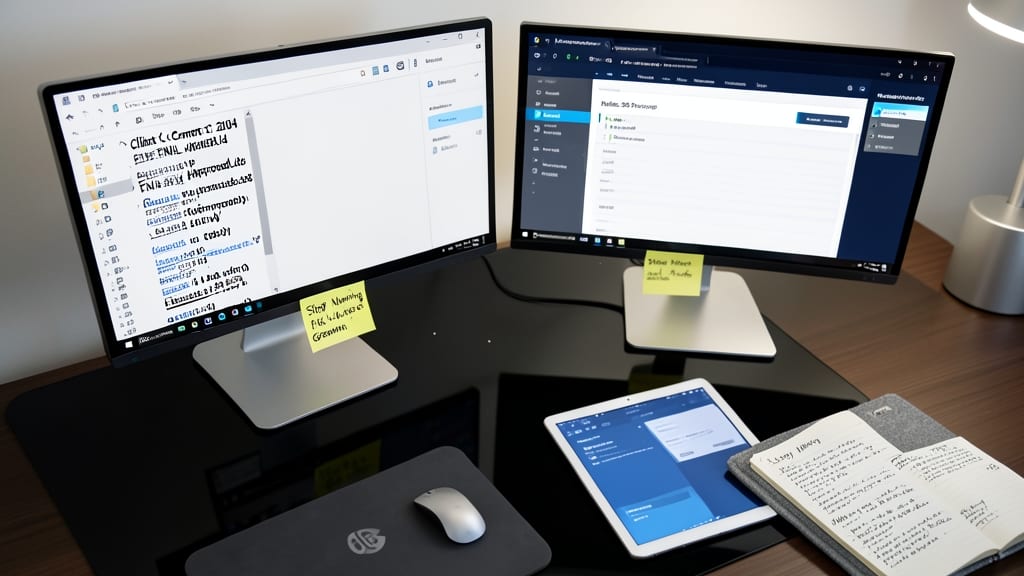
Tired of filenames that look like cryptic jumbles ("ClientContract2024FINALv4_Approved.docx")? Metadata tags are the smarter alternative—letting you store details like Author, Client, or Project directly in file properties instead of cluttering the name.
Windows and Office 365 support custom metadata fields (e.g., Case Number, Confidentiality Level), which work seamlessly with AI-powered search (like Microsoft Copilot) and automation tools. For example, a medical report can tag Patient ID and Doctor without bloating the filename. This method also future-proofs files for machine learning indexing—critical for legal or healthcare teams handling sensitive data.
Perfect for professionals who need audit trails or compliance tracking, metadata keeps filenames clean while ensuring critical details stay searchable. 💻